Communication
SchoolMate can send automatic messages to students and teachers whenever a key action takes place, such as a lesson change, cancellation, or new booking. Messages can be delivered via WhatsApp, Viber, Telegram, SMS, email, or as system messages sent straight to smartphones. For a complete list of the actions that can trigger a message, see Notifications below.
To configure these settings, go to School Admin → Settings → Communication.
Messaging alerts
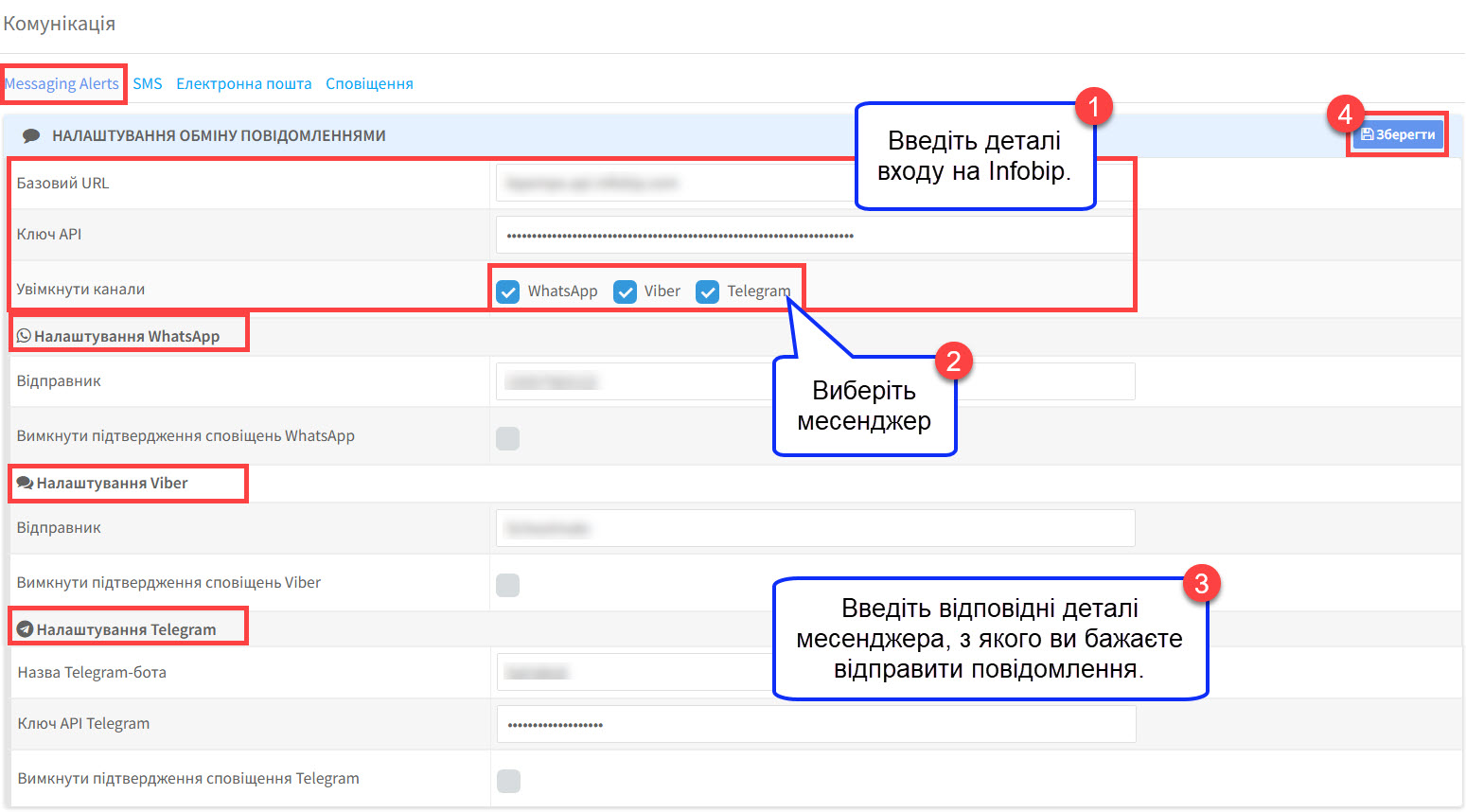
To send messages via the main messaging platforms, SchoolMate is integrated with Infobip, a leading communications platform. You will need to create an Infobip account to use these features. Costs vary depending on the platform used, message volume, and so on.
You will also need an account with the messaging platform itself.
WhatsApp — to send group messages you will need a WhatsApp Business account. Messages are sent as the “Utility” type.
See WhatsApp pricing details: WhatsApp Business messaging rates.
Viber — to send group messages you will need a Viber Business Messages account. Messages are sent as the “Transactional” type.
See Viber pricing details: Viber Business messaging rates.
Telegram — Telegram uses a bot system. Share your school’s bot name with students: they search for it in Telegram, tap on it, and share their contact details with your school. There are no per-message costs.
SMS
This is where you enter your SMS sender name. Depending on the type of SMS account you have — Basic or Pro — this will be either SchoolMate or your own school’s name.

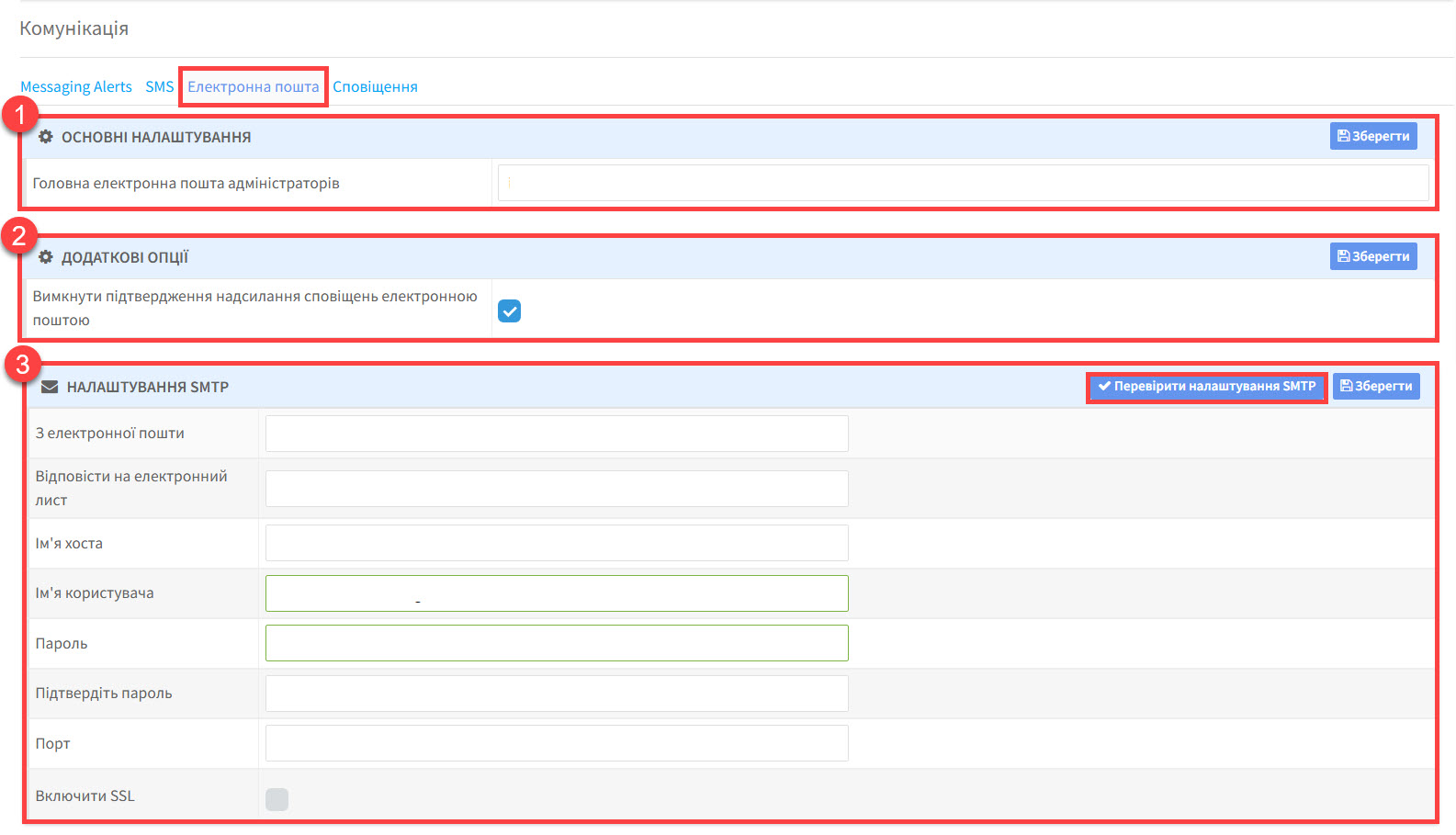
SchoolMate uses your email settings both for automatic system notifications (for example, lesson changes) and for any emails you send manually. Configure the three sections below:
- Basic Settings — enter your main admin email address here for receiving emails.
- Additional Options — by default the system waits for confirmation before sending emails. Switching this option off means emails are sent automatically.
- SMTP Settings — enter the email address you wish to send from, along with its SMTP server settings. Use the “Check” button to verify that the settings work, then click “Save”. Although this is your main email address, you can override it when sending emails. See our tutorial on sending emails.
System messages
System messages are sent from within SchoolMate to other users’ SchoolMate accounts. They appear when a student or teacher logs in.
System messages can also be delivered as push notifications directly to students’ smartphones, so they are seen even when the recipient is not logged in.
See our tutorial on system messages.
Notifications
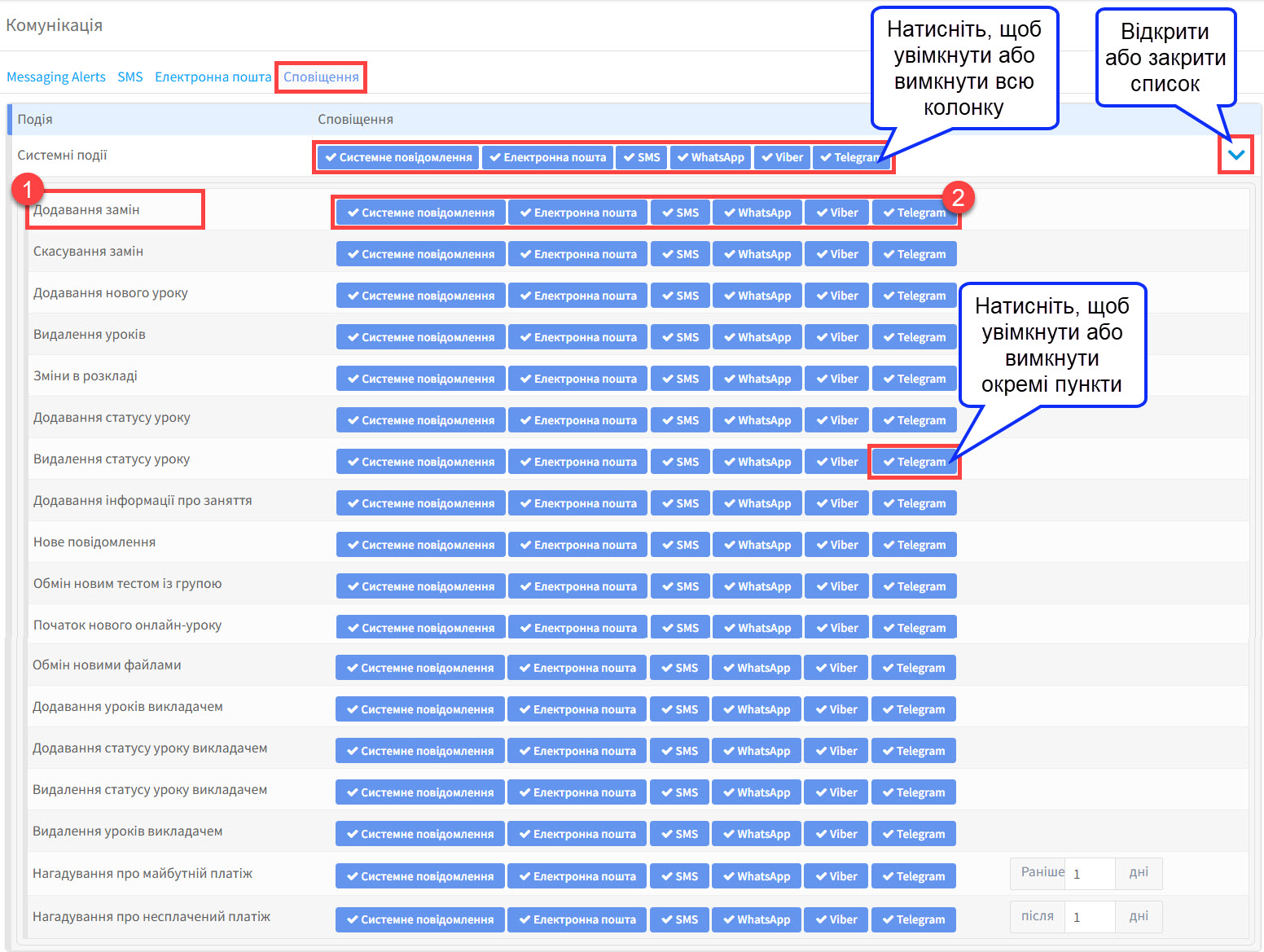
This is a list of the actions that can happen in the system, and which notifications should be sent to students and teachers when one of them takes place.
- If this action happens…
- …send this type of message. You will be asked to confirm before the message goes out.