
Company Card – Main Page
After you have created your company a card will be created:
- Assign students to the company.
- Send access details to HR Manager.
- Send access details to students.
- Send access details to HR Manager by SMS.
- Send access details to students by SMS.
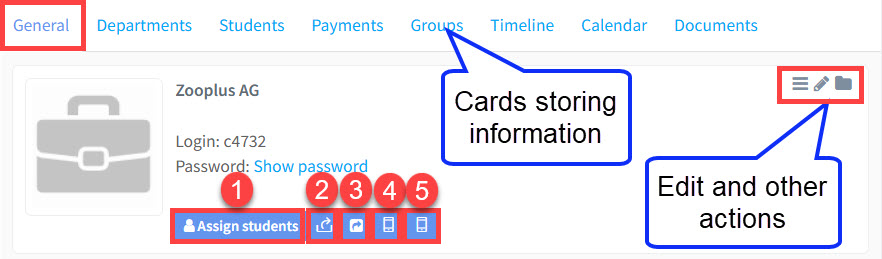
Cards Storing Information:
The top line contains cards of different sorts of information which will be covered elsewhere in this tutorial module.
Edit and Other Actions:
Clicking on the 3 lines will make this appear:
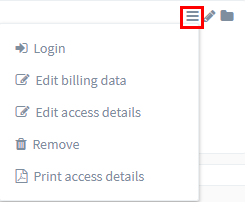
- Login – This option allows you to log in as the HR Manager. This is useful if you want to check what they can see.
- Edit billing data – Update contact details for invoices.
- Edit access details – Here you can change the HR Manager’s user name and password.
- Remove – delete.
- Print access details – Prints out the HR Manager’s user name and password.
Edit Company:
Clicking on this icon

will open up the company card and you can edit it.
Archive Company:
Clicking on this icon

will archive the company. You can find out more about Archiving here.